1
Codex works from instructions
You still need to explain what you want. The better the instruction, the better the result.

A simple first step for buying back time, reducing back and forth, and moving from chatting with AI to delegating work.
Think of Codex as an AI workspace where the team can prepare real work faster, then review, improve, and approve it before anything goes out.
You still need to explain what you want. The better the instruction, the better the result.
Start with one email, one summary, one workflow, one report, or one decision that slows the team down.
The AI drafts, organizes, researches, and prepares. The team reviews, decides, and approves.
Set up the desktop app first. The screen may look slightly different depending on your plan, device, and workspace settings.
Use the ChatGPT account your team wants to use for training. Codex is available on ChatGPT plans that include Codex.
Go to the official OpenAI Codex page and download the desktop app for Mac or Windows.
Open the app and sign in with the same ChatGPT account. If your company controls access, ask the workspace admin to enable Codex.
Do not worry about advanced setup on day one. Start with one clear task and use the Role, Task, Goal, Questions framework.
Codex can prepare work, but you still review, improve, and approve the final answer before anything is shared.
Use this page as your starter guide. Come back to the prompts whenever you need a clean way to ask Codex for help.
These are official OpenAI screenshots. Your app may look different as Codex updates, but the basic idea is the same.
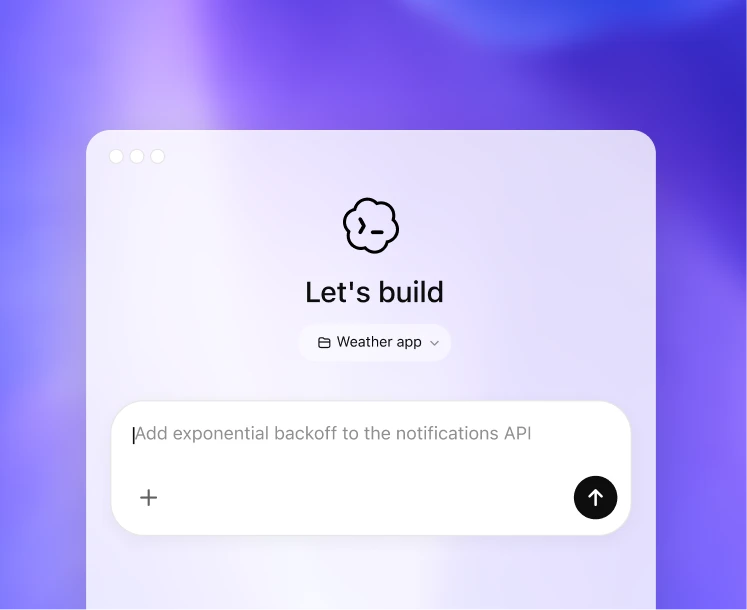
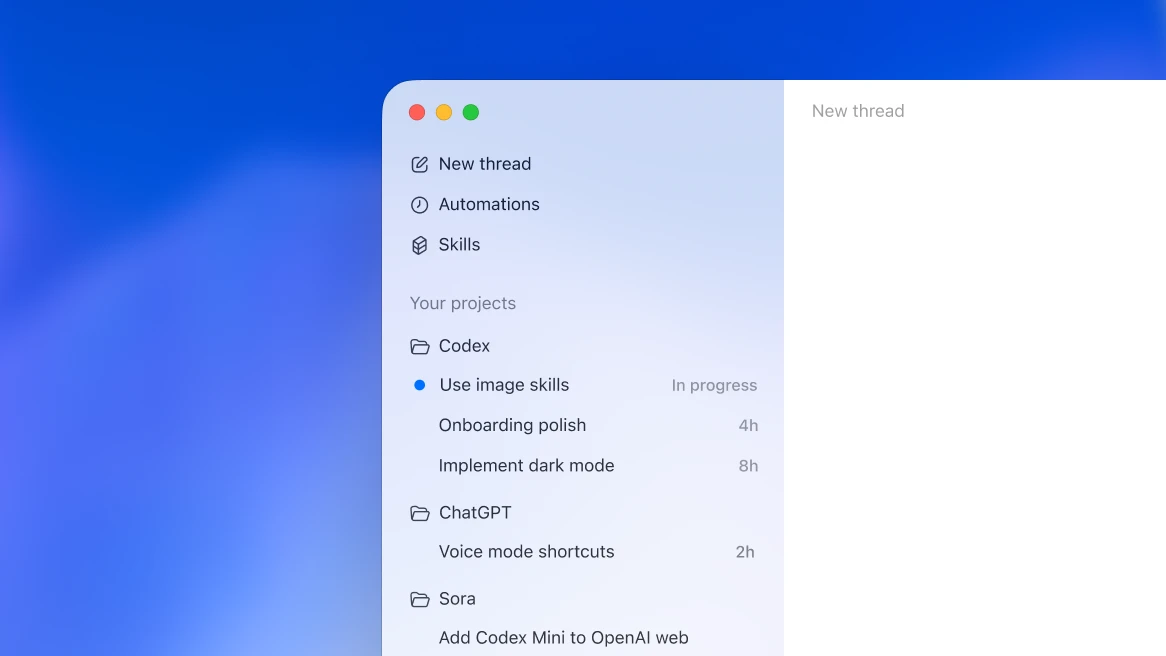
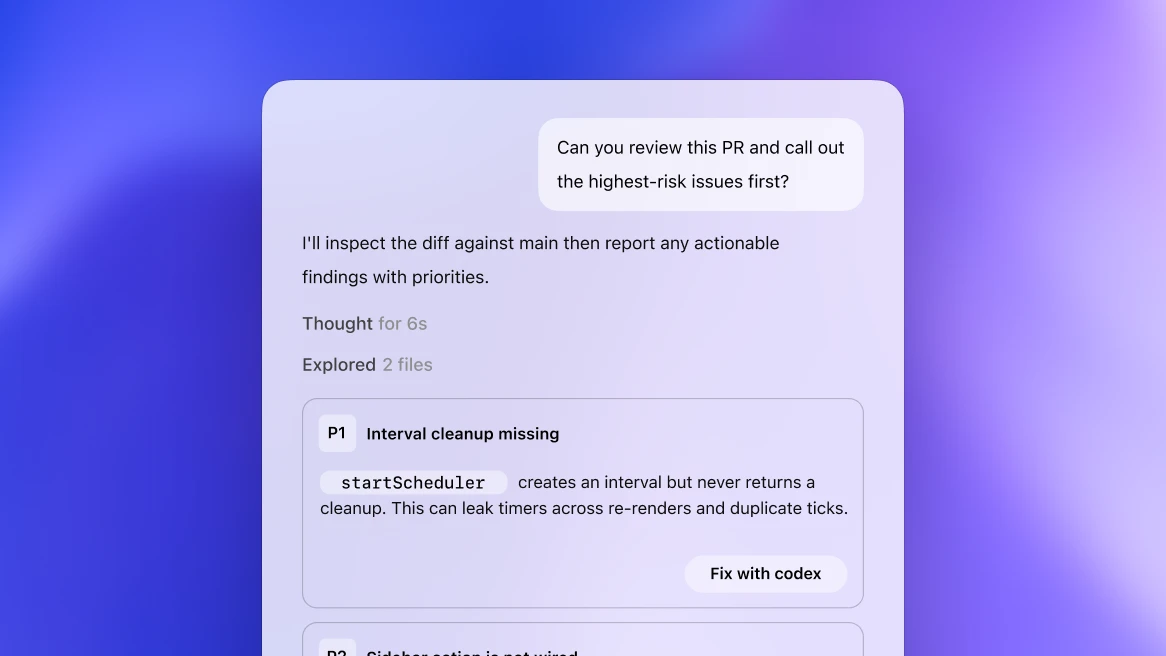
Codex does not replace team collaboration. It helps each person prepare better work, then bring that work back to the team for review.
Each team member has their own Codex work. Other people do not automatically see their chat or Codex history.
Share the final draft, summary, action plan, prompt, link, or workflow when it is useful for the team.
Codex prepares the work. The team still checks facts, tone, context, and next steps before anything is sent or actioned.
When a prompt or process works well, save it so the whole team can reuse it instead of starting from scratch.
This is the first skill. Everything else becomes easier once the team learns to speak to AI clearly.
Tell the AI who it should act as: assistant, operations manager, trainer, researcher, or client service manager.
Tell the AI exactly what work it must do next. Keep the task specific.
Tell the AI what outcome you want. This helps it make better choices.
Tell the AI to ask before answering if it needs more context.
These prompts avoid copy and paste language. They prepare the team for connected workflows without needing setup on day one.
The breakthrough is simple: when the right tools are connected, AI can help from the places where your work already happens. Email, calendar, team messages, and files become usable context instead of extra copy and paste.
The practice should produce real examples from your own work. Bring the prompts, outputs, and workflow ideas back to the next session.
Use the Role, Task, Goal, Questions framework once per working day on real team work. Save one good result and one bad result.
List the tools you use every day: email, calendar, files, WhatsApp, Slack, CRM, project management, spreadsheets, and anything else.
Write down your top five daily tasks, top five weekly tasks, and the work that creates the most back and forth across the team.
Complete this sentence: “I wish I could tell an AI agent to go find this, understand it, and prepare the next step for me.”
Bring one example where AI helped, one example where it failed, and one task you want to turn into a repeatable team workflow.
Source basis: OpenAI describes Codex as an AI coding agent that can pair locally or run delegated work in the cloud, and the Codex app as a place for multiple agents, skills, automations, worktrees, and git functionality. OpenAI also documents ChatGPT apps and connectors for sources such as Gmail, Google Calendar, Slack, and Google Drive, subject to plan, region, permissions, and admin setup. In ChatGPT Business, each user has their own chat and Codex history, and teammates do not automatically see it.
References: Using Codex with your ChatGPT plan, OpenAI Codex, Introducing the Codex app, Apps and connectors in ChatGPT, ChatGPT Slack app, ChatGPT Business data and sharing.